> ## Documentation Index
> Fetch the complete documentation index at: https://docs.spatialreal.ai/llms.txt
> Use this file to discover all available pages before exploring further.
# API Keys
> Create and manage API credentials
API Keys are the foundation of your SpatialReal integration. They allow you to authenticate your applications and securely access SpatialReal services. In this guide, you'll learn how to create API Keys in [SpatialReal Studio](https://app.spatialreal.ai) and best practices for managing them.
## Creating an API Key
Go to [https://app.spatialreal.ai/apps](https://app.spatialreal.ai/apps).
On the API key page, click **Create API Key**.
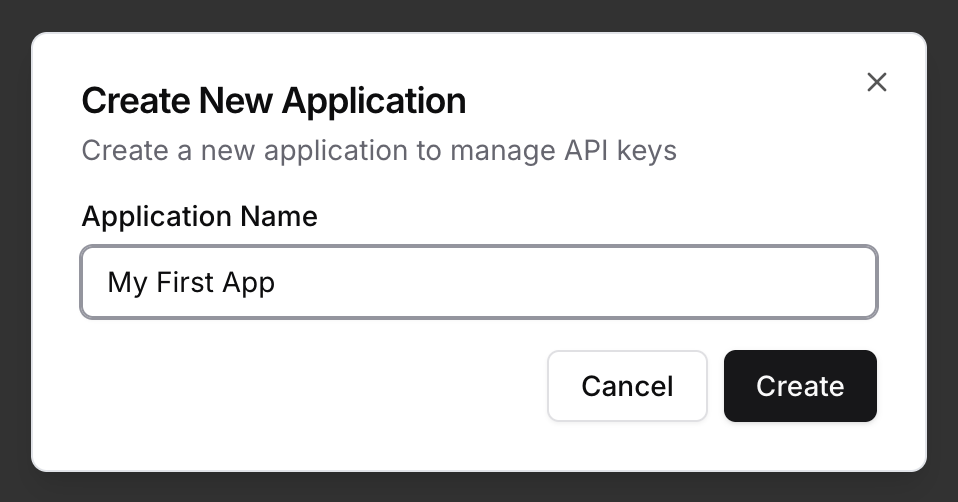
 Type your **Application Name** and click **Create**.
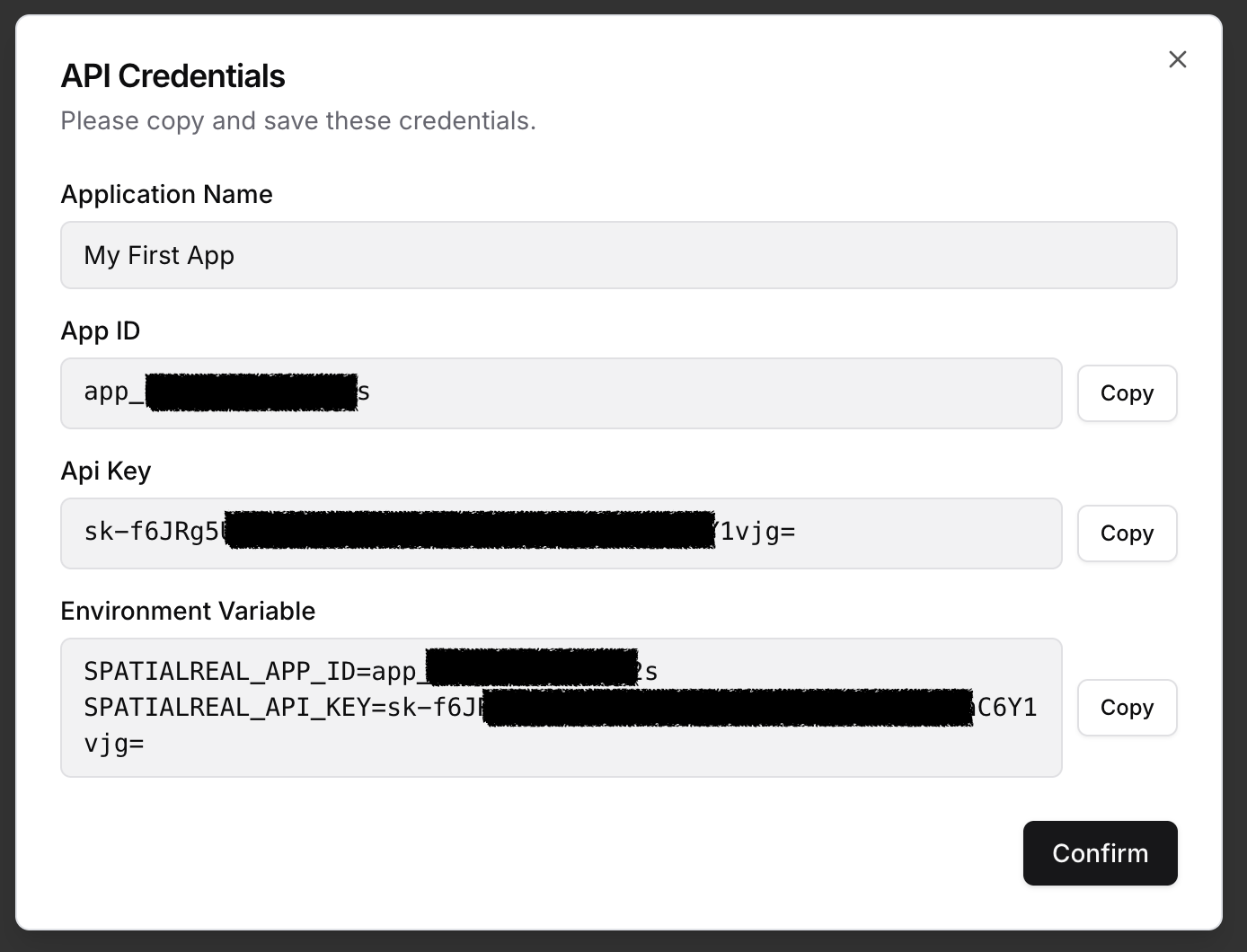
 In the popup, copy both **App ID** and **API Key**.
 ***
## Manage your API Key
Your API Key is used to authenticate server-side requests to SpatialReal services.
**Important:** Keep your API Key secure and never expose it in client-side code or commit it to version control. Treat it like a password to prevent unauthorized access to your SpatialReal account.
**Best Practices:**
* Store your API Key in environment variables or a secrets manager
* Never expose your API Key in client-side code
* Never commit your API Key to version control
***
## Temporary Session Token
For quick testing and development, you can generate a **Temporary Session Token** directly in [SpatialReal Studio](https://app.spatialreal.ai).
Temporary Session Tokens are valid for **24 hours** only. They are intended for testing purposes and should not be used in production.
Navigate to [API keys page in SpatialReal Studio](https://app.spatialreal.ai/apps), then click the details button of your application.
***
## Manage your API Key
Your API Key is used to authenticate server-side requests to SpatialReal services.
**Important:** Keep your API Key secure and never expose it in client-side code or commit it to version control. Treat it like a password to prevent unauthorized access to your SpatialReal account.
**Best Practices:**
* Store your API Key in environment variables or a secrets manager
* Never expose your API Key in client-side code
* Never commit your API Key to version control
***
## Temporary Session Token
For quick testing and development, you can generate a **Temporary Session Token** directly in [SpatialReal Studio](https://app.spatialreal.ai).
Temporary Session Tokens are valid for **24 hours** only. They are intended for testing purposes and should not be used in production.
Navigate to [API keys page in SpatialReal Studio](https://app.spatialreal.ai/apps), then click the details button of your application.
 Click **Generate Temporary Token** to create a new temporary session token.
 Use this token in your client SDK to test avatar rendering without setting up server-side authentication.
***
## Production Authentication
In production, you should generate session tokens from your backend server using the API Key. See the [Authentication Guide](/server/auth) for implementation details.
Learn how to implement secure server-side authentication
Use this token in your client SDK to test avatar rendering without setting up server-side authentication.
***
## Production Authentication
In production, you should generate session tokens from your backend server using the API Key. See the [Authentication Guide](/server/auth) for implementation details.
Learn how to implement secure server-side authentication